7.7. Select multiple objects at once
There are three ways to select multiple objects on the model. The first one is through the range selection mode, which selects objects whose boundaries intersect the selection rectangle drawn by the user. By default, the range selection is activated by holding the Shift key and dragging it over the canvas area. To select the objects inside the rectangle, release the Shift key and the mouse button. It is possible to change the activation mode of this feature in the general settings.
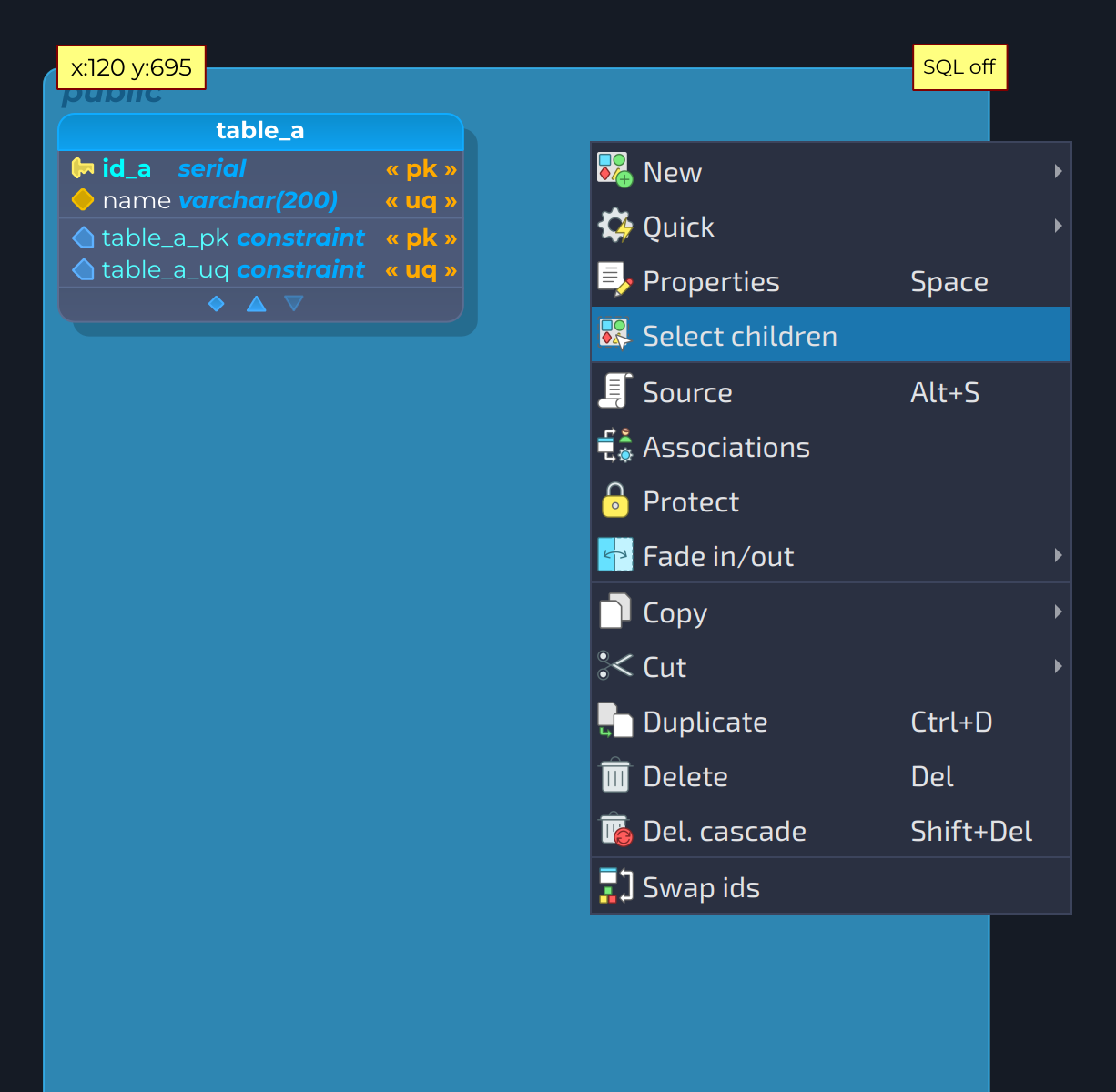
The second way to select a set of objects is through the schema object. In this form, you can right-click the schema's rectangle on the canvas area or a schema item on the model objects widget and select the Select children action, causing all graphical objects under the same schema to be selected.
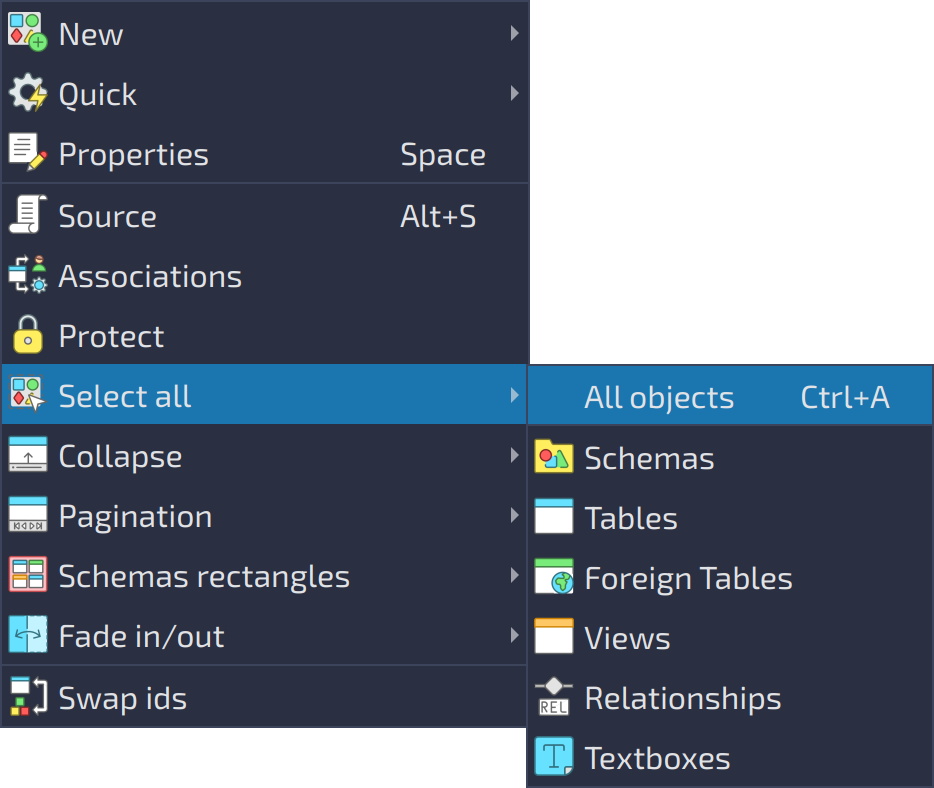
The third way to select a set of objects is by using the Select all action when right-clicking a blank portion of the canvas. In that case, it presents to the user what kind of graphical objects should be selected.
Selecting related objects
Two more context menu items select objects according to their links:
Select tagged: available when right-clicking a tag object (on the model objects widget, for instance). It selects all the tables and views to which the tag is assigned.Select relationships: available when right-clicking a table or a view. It selects the relationships drawn on the canvas that are connected to that table or view. The relationships represented by a relationship marker (hidden relationships or relationships with tables of another scene, see 1.2.6. Multi-scene models) are not drawn, so they are not selected.
Select several child objects on tables
This feature allows the user to select multiple table children like columns, constraints, triggers, indexes, rules, and policies by holding Ctrl + Shift and clicking the desired elements on any table. This also applies to items on views and foreign tables. The real usefulness of this feature is to perform operations like copying, duplicating, pasting, cutting, and deleting all selected objects instead of doing them per object. This can improve the user experience on the design view. Of course, there are some drawbacks here: depending on the kind of objects selected or the option chosen during some operations, the result may differ a bit compared to the operations performed over a single item.