7.23. Fading objects
In large or crowded models, it is hard to focus on the objects you are working on because everything on the canvas competes for attention. To help with that, pgModeler can fade out objects, which reduces their opacity so they stay visible but visually step back, and fade in them again to restore the original opacity. The fading only changes how the objects are drawn: it has no effect on the generated SQL code. The faded state of the objects is stored in the model file (and is also handled by the objects' metadata tool, see 6.12. Objects' metadata handling). The opacity of a faded object is defined by the option Minimum opacity in the Canvas & Objects tab of the appearance settings; when it is zero, faded out objects are hidden instead of faded.
The fade actions are in the context menu item Fade in/out. The items available in that menu depend on what is selected on the canvas.
Fading the selected objects
When one or more objects are selected, the menu offers Fade out and Fade in to be applied to the selection. When a single graphical object is selected, only the action that makes sense for it is shown: Fade out if the object is fully visible or Fade in if it is already faded. When the selected object is a tag, the action is applied to all the tables and views that use that tag.
Fading the surroundings of a table or a view
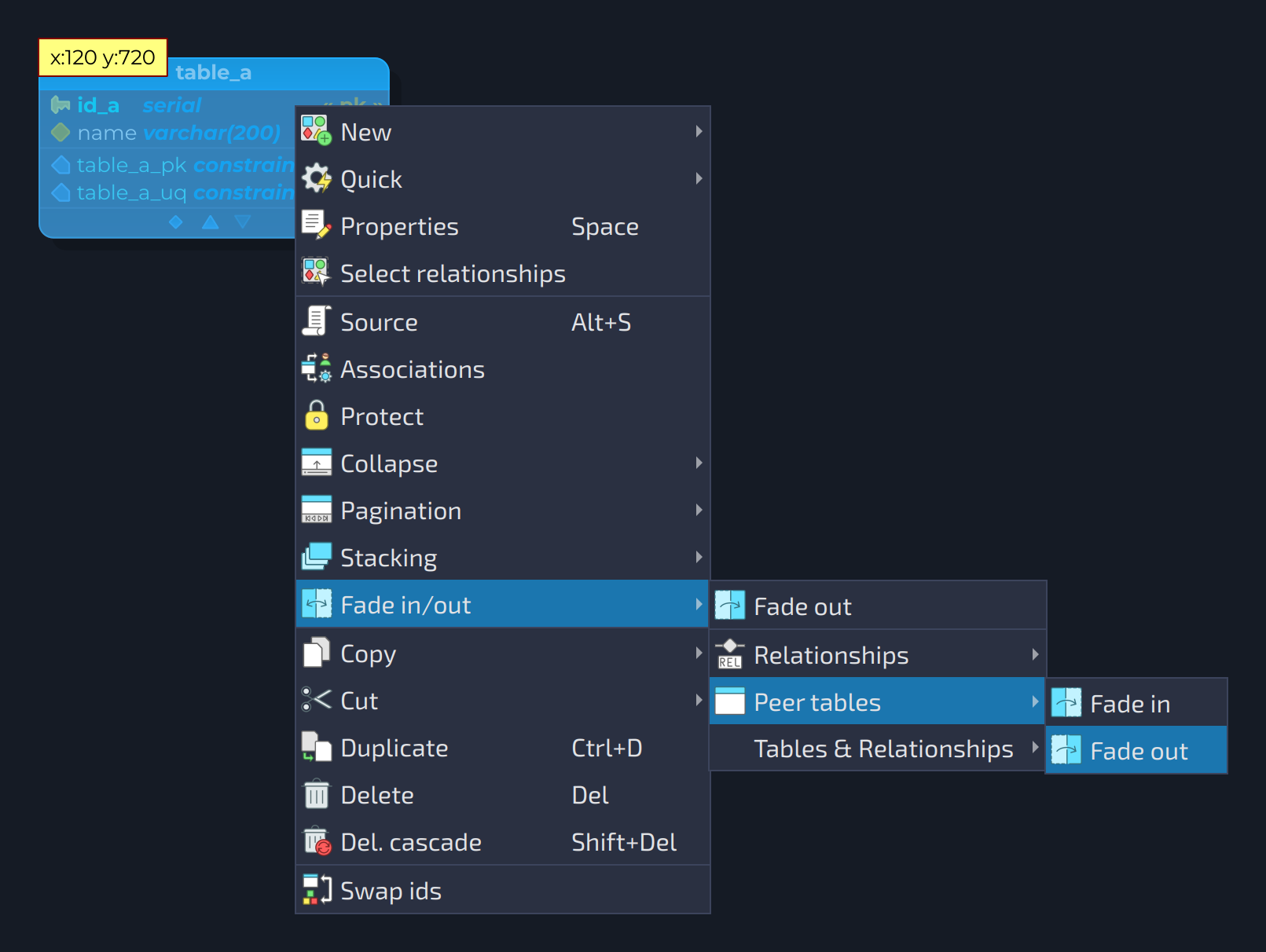
For a table or a view, the submenus Relationships, Peer tables, and Tables & Relationships are also listed, each one with the actions Fade in and Fade out:
Relationships: applies the action to the relationships connected to the object.Peer tables: applies the action to the tables (or views) that are linked to the object through its relationships.Tables & Relationships: applies the action to both the relationships and the peer tables.
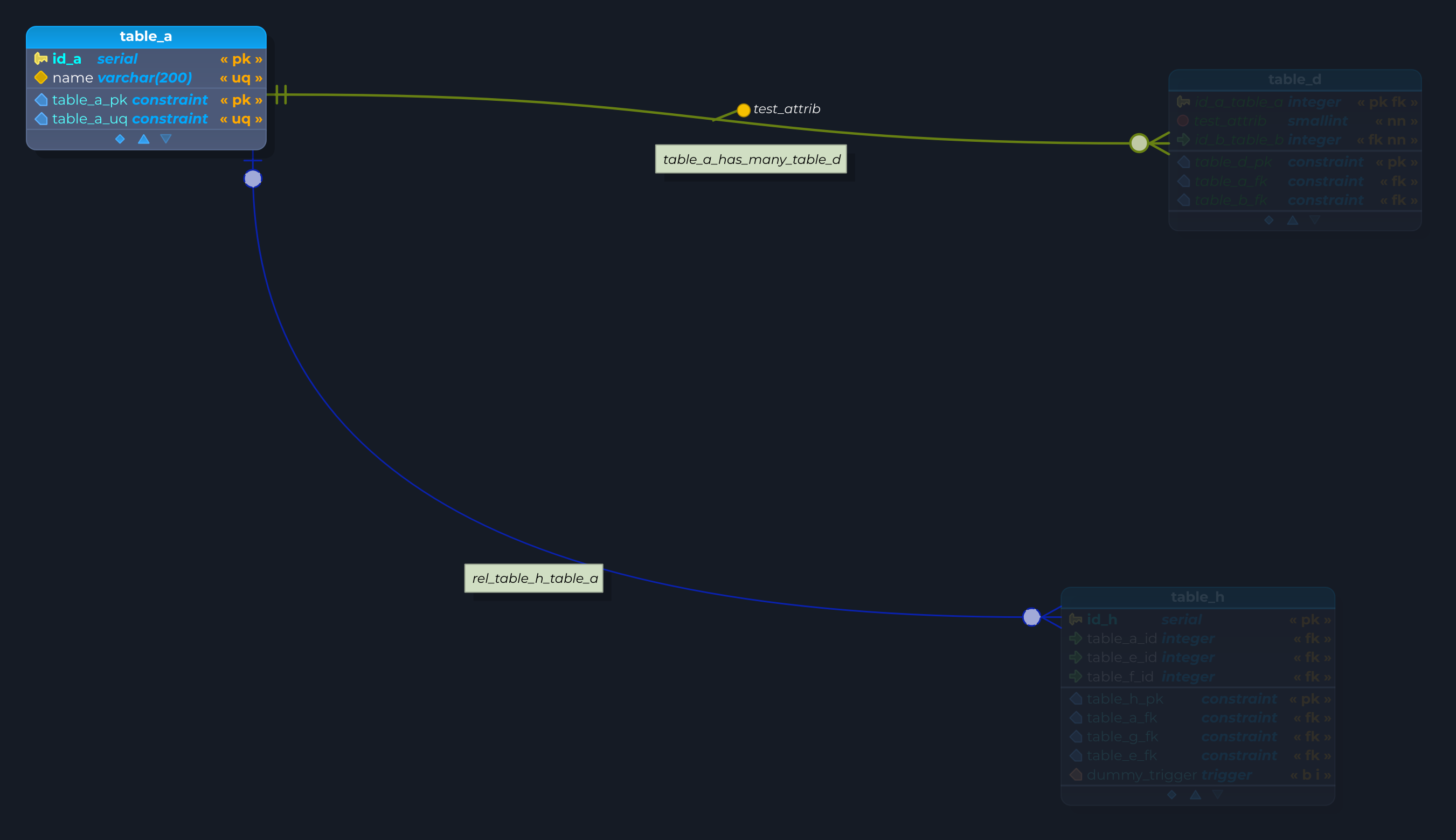
A common use of these submenus is to fade out the surroundings of a table and then fade the table itself back in, so that only it stays highlighted, as shown below, where the peer tables and the relationships of table_a were faded out and table_a was faded in again.
Fading all the objects of a kind
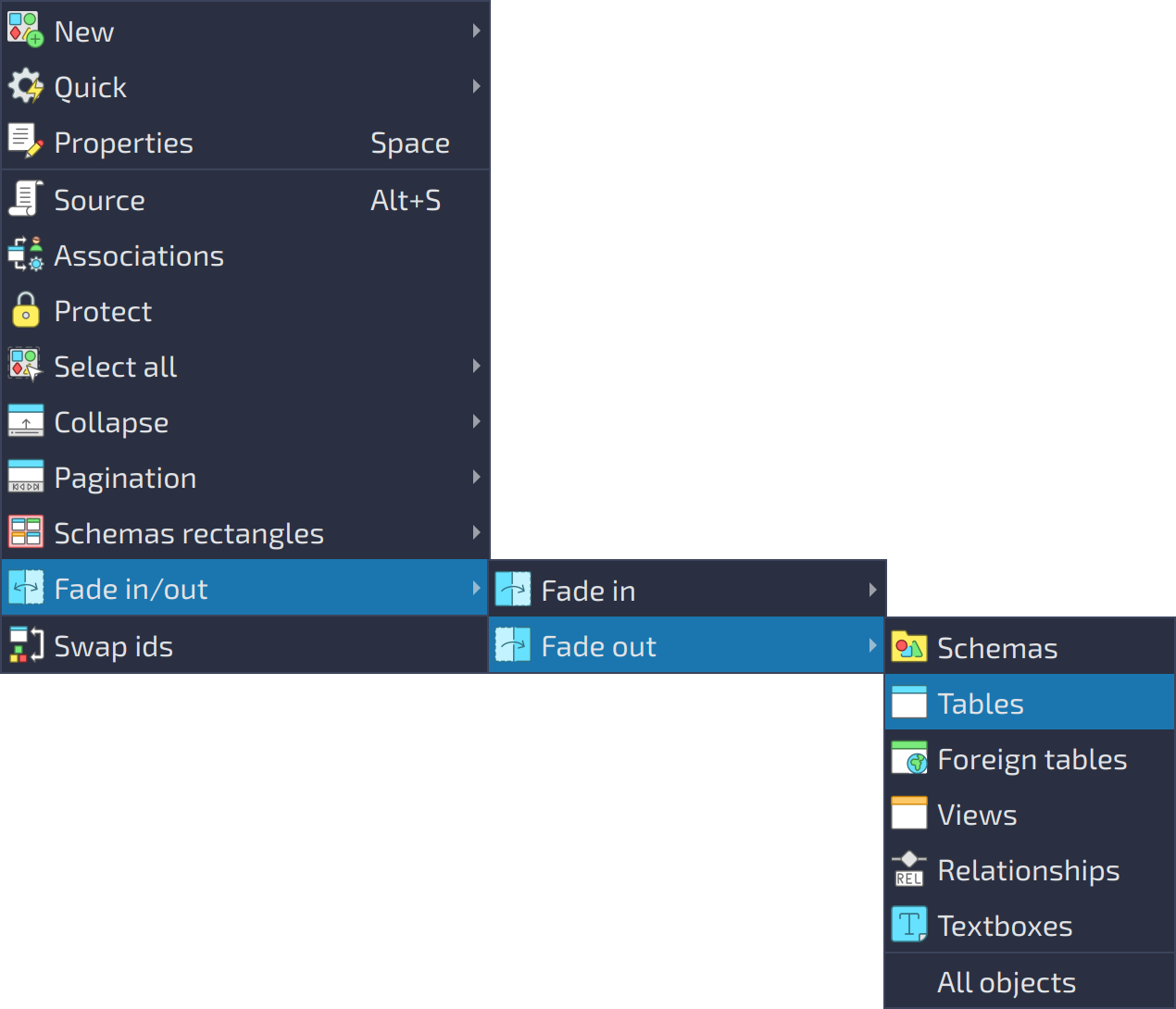
Right-clicking a blank area of the canvas (or with the database selected), the item Fade in/out contains the submenus Fade in and Fade out, which apply the action to all the objects of a kind: Schemas, Tables, Foreign tables, Views, Relationships, and Textboxes, or to All objects at once.
The objects found by the object search can also be faded out with the button Fade out  of that tool (see 6.9. Object search).