5.2. Import a database
The database import process, or reverse engineering as it is commonly known, consists of reading the information about all database objects stored on the system catalogs (pg_catalog.* and information_schema.*) and, based on these details, generating a reliable database model.
Even though it is still experimental, this process works quite well in pgModeler, but depending on the database structure it may sometimes fail. Fortunately, some workarounds can be used to create almost all database objects without problems. The image below shows all available options in the import dialog and their details in the following table.
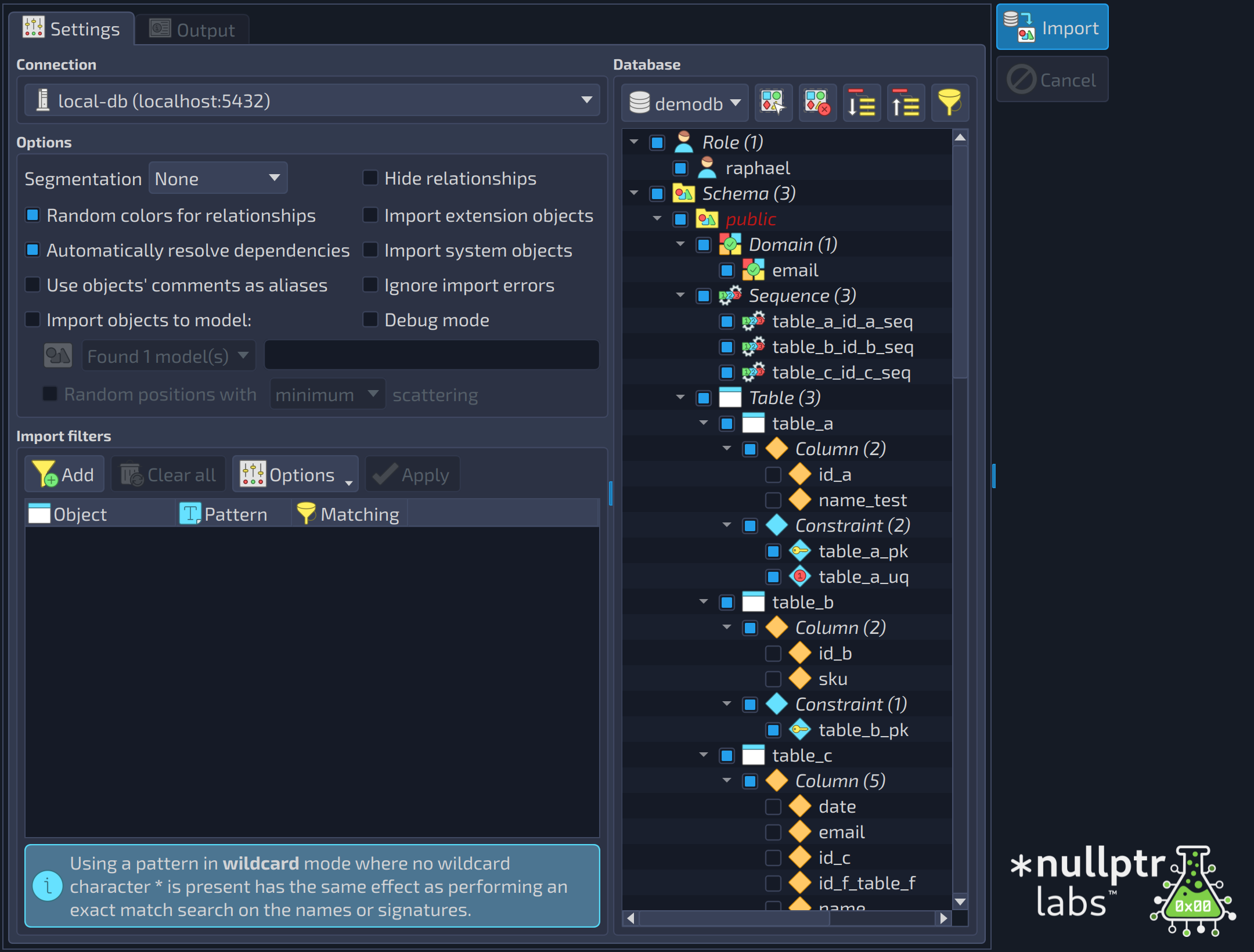 1234567891011121314151617181920212223242526272829
| Import | ||
|---|---|---|
| # | Field | Description |
| 1 | Import | Starts the import of the checked objects. |
| 2 | Cancel | Cancels the import in progress. |
| Connection | ||
|---|---|---|
| # | Field | Description |
| 3 | Connection | The previously configured connection used as the communication channel with the server. The user of the selected connection must have the permissions needed to query the system catalogs, otherwise the process fails. |
| Database | ||
|---|---|---|
| # | Field | Description |
| 4 | Database | Lists all the databases available on the server. The tree below the list shows the objects of the selected database, and it is updated whenever the working database is changed. |
| 5 | Select all | Selects all the objects of the tree. |
| 6 | Clear selection | Clears the current selection of objects. |
| 7 | Expand all | Expands all the items of the tree. |
| 8 | Collapse all | Collapses all the items of the tree. |
| 9 | Filter | Shows the filter field of the objects tree. The option |
| 10 | Database objects | The objects of the selected database, grouped by type. Check the ones to be imported. |
| Options | ||
|---|---|---|
| # | Field | Description |
| 11 | Segmentation | Determines the model's segmentation mode. None: All objects are created on a single scene (canvas). This is the classic behavior. By schema: Each schema defines a new scene (canvas) where tables, views, and foreign tables are routed according to their parent schemas. By threshold: Whenever the number of tables, views, or foreign tables reaches a multiple of the defined threshold, a new scene (canvas) is created and new objects are routed to it. NOTE: Schemas' visual representations are disabled when the model is segmented. |
| 12 | Hide relationships | Hides the relationships between tables of the same scene in the imported model. |
| 13 | Random colors for relationships | Random colors are assigned to the imported relationships, which helps to identify the links between tables, mainly in large models. |
| 14 | Import extension objects | Enables the import of the objects created by extensions. Generally, there is no need to check this option, but it must be enabled if there are objects in the database that directly reference this category of objects. |
| 15 | Automatically resolve dependencies | Tries to resolve some of the dependencies of an object by querying the catalog when a needed object does not exist in the loaded set. In some cases it is necessary to combine this option with the other options of the group. It does not apply to database-level objects such as roles, tablespaces, and languages, nor to data types and extensions. |
| 16 | Import system objects | Enables the import of the system built-in objects. It is recommended to select only the objects that are directly referenced by the ones to be imported. Trying to import a huge set of system objects can bloat the resulting model or even crash pgModeler due to excessive memory/CPU usage. |
| 17 | Use objects' comments as aliases | Uses the comment of each imported object as its alias in the model. The comment is truncated if it exceeds the maximum length of an object name. |
| 18 | Ignore import errors | pgModeler ignores the import errors and tries to create as many objects as possible. With this option, the import is not aborted, but an incomplete model may be created. A log file is generated in the temporary directory of pgModeler. |
| 19 | Import objects to model: | Creates all the imported objects in the current working model instead of creating a new one. It is useful to bring objects from another database into the current model. This option implies ignoring any import error. It is enabled only when at least one model is open in the Design view. When it is checked, the field |
| 20 | Debug mode | All the catalog queries and the source code of the created objects are printed to the standard output (stdout) and to the |
| 21 | Model | The loaded model that receives the imported objects, when |
| 22 | Model file | The file of the selected model (read-only). |
| 23 | Random positions with | When checked, this option causes the imported tables to be placed in random positions without changing the positions of the objects previously existing on the model. If this option is unchecked, all tables will be placed at the position (0, 0). draft |
| 24 | Scattering level | Determines the amount of space used to scatter the tables in the canvas ( |
| Import filters | ||
|---|---|---|
| # | Field | Description |
| 25 | Add | Adds a new entry to the filters grid. |
| 26 | Clear all | Removes all the configured filters. To remove a filter individually, click the delete button |
| 27 | Options | Opens a menu with options that tweak the filtering: |
| 28 | Apply | Lists only the objects that match the filters in the grid of the group |
| 29 | Filters | The filters configured for the import. Each row has the object type, the pattern, and the matching mode (wildcard or regular expression); the button |
 at the end of its row.
To start an import process, you first need to select the connection to be used to establish a new connection to the server. Once connected, all available databases will be listed in the combo box in the Database group. Select the desired database and wait for the tree view to be updated with the database objects. Define the desired import options and click Import  . The process can be a bit slow depending on the number of objects to be imported. Once finished, the dialog is automatically closed, and the generated database model is loaded.
Reverse engineering filters
The object filtering in the reverse engineering dialog allows the user to provide filtering patterns that force pgModeler to list only those items matching the defined criteria, importing only a small subset of the database. This feature comes in handy mainly when you need to work with a few objects that reside in a huge database, avoiding the importing of the entire set of objects.
In older releases, the user was able to work with subsets of the database, but there was a need to list all objects first and then select only those to be imported. This could consume unnecessary time. By design, reverse engineering is not a quick operation since it demands lots of queries on the system catalogs of PostgreSQL, and depending on the size of the database those queries can take a lot of time to retrieve all object information, list them on the tree, and only after that allow the user to select the desired ones. So, thinking of optimizing this process of listing and selecting objects, the filters were introduced.
The image above shows the demodb database containing ~50 objects. So listing everything first before selecting only those objects to import would be a waste of computational resources and time. This is where filters come in. In the image below, there are two filters specified, and once applied, they could retrieve only 5 (the two matching tables and their constraints) in just a small fraction of the time that it could take to bring all the objects, thus selecting only a few. The available controls and options of the filtering widget are detailed below.
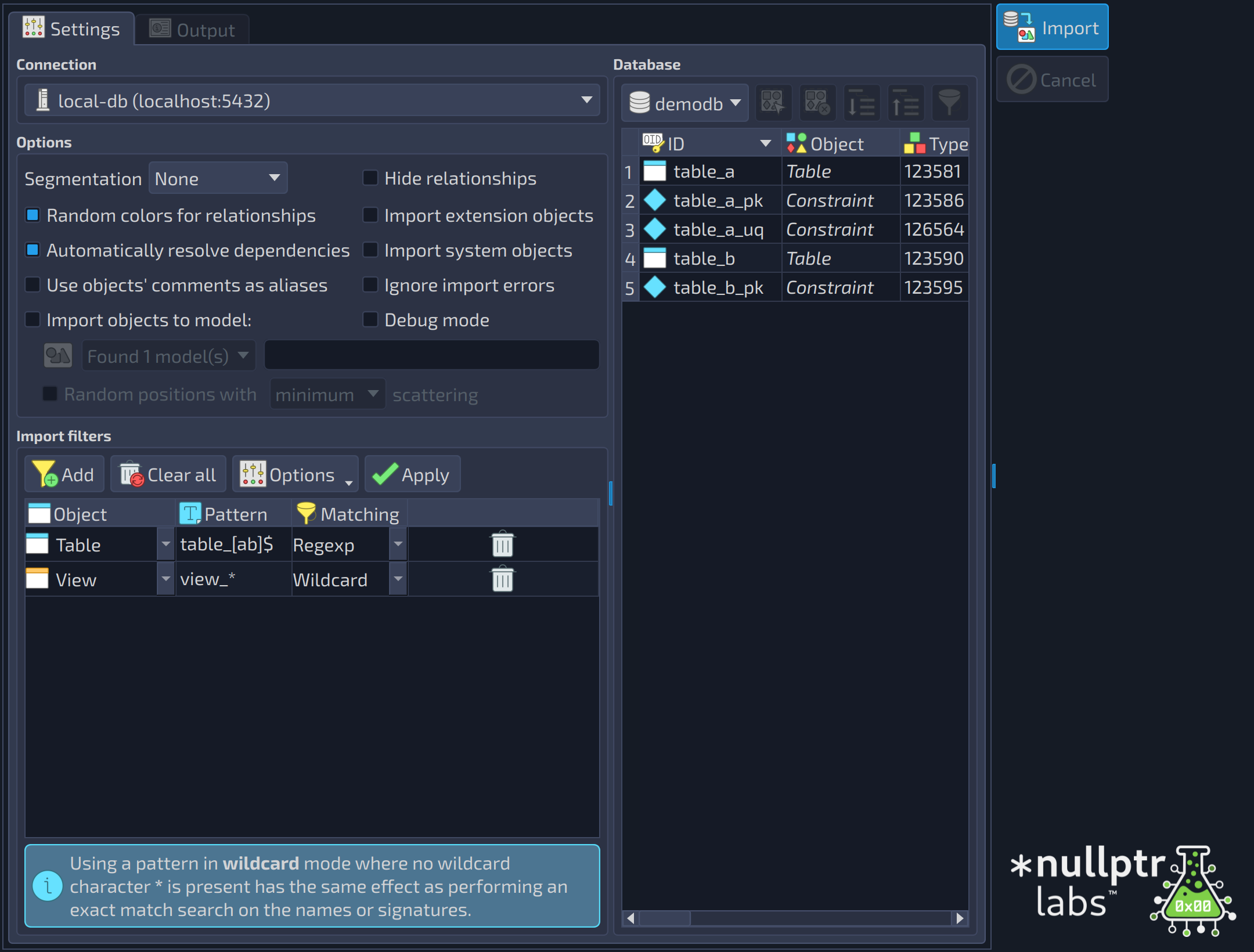 12345
12345
| Import filters | ||
|---|---|---|
| # | Field | Description |
| 1 | Add | Adds a new entry to the filters grid. |
| 2 | Clear all | Removes all the configured filters. To remove a filter individually, click the delete button |
| 3 | Options | Opens a menu with options that tweak the filtering: |
| 4 | Apply | Lists only the objects that match the filters in the grid of the group |
| 5 | Filters | The filters configured for the import. Each row has the object type, the pattern, and the matching mode (wildcard or regular expression); the button |
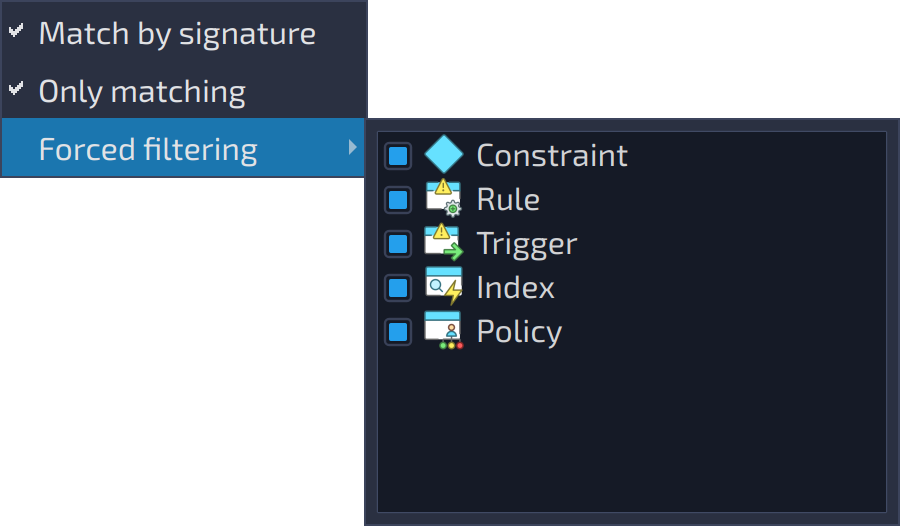
The options below are in the Options menu of the filters widget. The submenu Forced filtering lists the object types that the forced filtering applies to, all of them checked by default.
| Field/Option | Description |
|---|---|
Match by signature | This option, checked by default, causes the patterns to be matched against object signatures instead of their names only. The signature of an object is composed of the schema name (if applicable), the name, and the parameter data type (only for objects that handle parameters like functions and procedures). So, examples of signatures could be schema.table, schema.function(param_type, param_type1) and so on. |
Only matching | This option causes objects strictly matching filters to be listed. |
Forced filtering | This one is a special filter option that causes table children objects (constraints, indexes, triggers, rules, and policies) to be listed when at least one table/view/foreign table filter is present. This is useful, for instance, when you need to import just a small set of tables and their peers (defined by foreign keys). It's important to say that this special action is taken only for the tables matching the filters. Clicking the button will raise a menu containing the child types that you want to force the listing. |
In the filters grid, the column Object indicates the object type that the filter in that row applies to. The Pattern column is a string that is matched against the object names or signatures. The Matching column is the mode in which the pattern is compared with the names and signatures. There are two possible modes: Wildcard and Regexp. Basically, the matching modes are the indicators of what SQL matching will be performed when querying the system catalog. The Wildcard operates similarly to the LIKE operator in SQL, but instead of % as the wildcard character, we use *. Finally, Regexp is the alias to the regular expression matching operator ~*. It's important to note that all comparisons are case insensitive.
References
System catalogs
https://www.postgresql.org/docs/current/static/catalogs.html