4.1. General settings
This configuration section groups all general-purpose options that don't fit any other sections. In this widget, the user can change the behavior of some modeling features, some global options, and the printing settings.
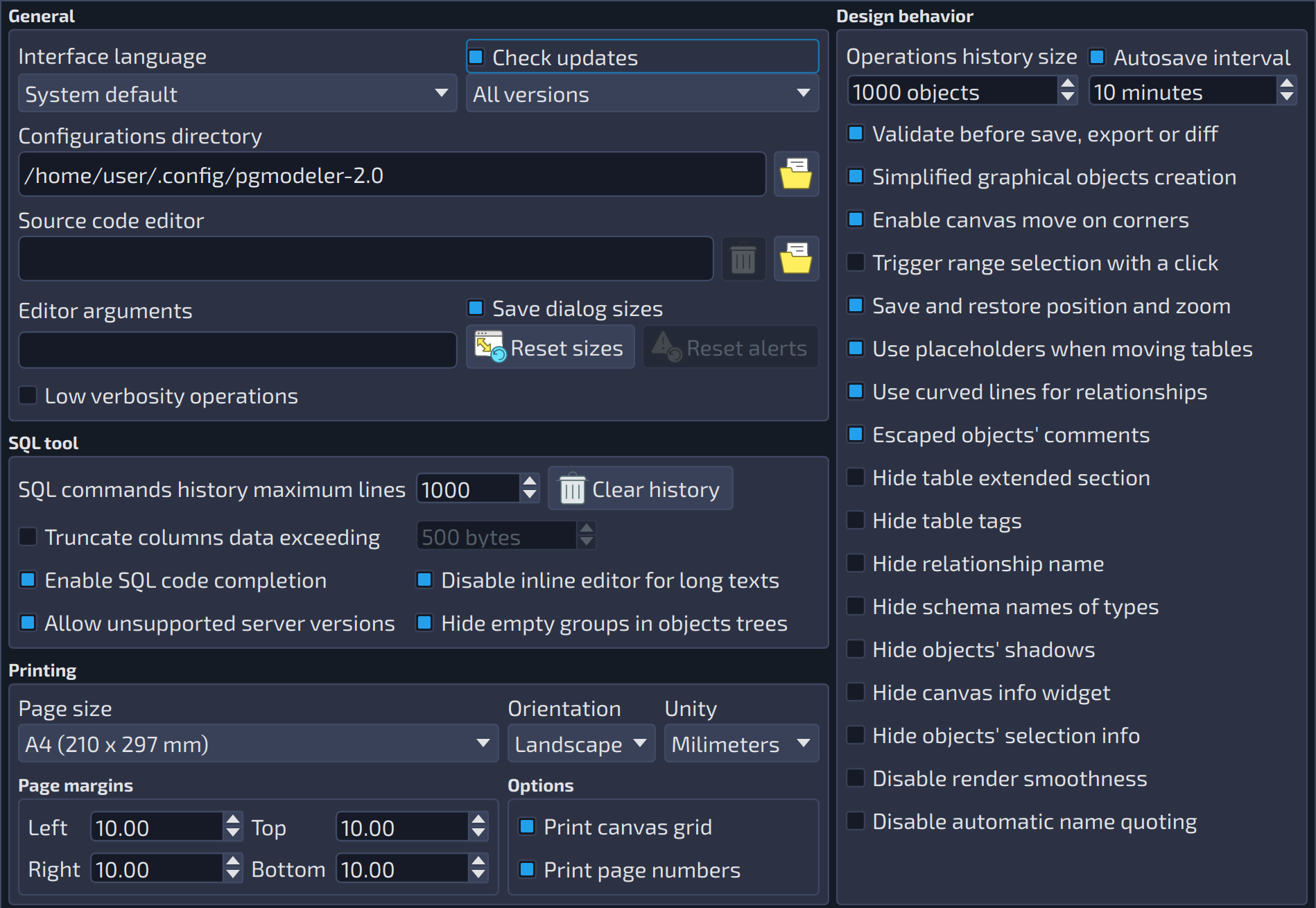 12345678910111213141516171819202122232425262728293031323334353637383940414243444546474849
| General | ||
|---|---|---|
| # | Field | Description |
| 1 | Check updates | Check for new version on server at startup |
| 2 | Interface language | Overrides the default user interface language defined by the system. Requires restarting the application. NOTE: UI translations are AI-generated and have not yet been revised by a human, so typos or mistakes can be reported through the project's support channels. |
| 3 | Check updates (releases) | Selects which releases are considered when checking for a new version at startup: all versions, stable and beta versions, or stable versions only. It is enabled only when |
| 4 | Configurations directory | pgModeler configurations directory for the current user |
| 5 | Open in file manager | Opens the configurations directory in the file manager of the operating system. |
| 6 | Source code editor | External source code editor application |
| 7 | Select file | Opens a dialog to select the executable of the external source code editor. |
| 8 | Save dialog sizes | When checked, pgModeler saves the last size and position of almost all the dialogs of the application and restores them every time they are opened. This state is persisted, so the sizes and positions are restored even after the application is closed and opened again. The button |
| 9 | Editor arguments | The arguments passed to the source code editor application, before the path of the temporary file that holds the text being edited. The whole content of the field is passed as a single argument. |
| 10 | Reset sizes | Reset the dialogs sizes and positions to their default values. |
| 11 | Reset alerts | Reset alert statuses/choices regarding the unsaved models, the open SQL execution tabs, and the usage of the disambiguation convention for duplicated object names. |
| 12 | Low verbosity operations | Reduces the verbosity by displaying only key info messages and errors. This option causes less rendering operations when displaying progress messages and, as a consequence, it makes processes run faster. |
| Design behavior | ||
|---|---|---|
| # | Field | Description |
| 13 | Autosave interval | Defines the period when the opened models will be saved automatically. The temporary models saving period will be defined as the half of the value defined here. If the autosave is disabled the temporary models saving will occur in a period of 5 minutes. |
| 14 | Operations history size | Defines the maximum amount of elements held in the operation history. Once reached the maximum number the history is automatically cleaned. |
| 15 | Autosave interval (minutes) | The interval, in minutes (from 5 to 30), between the automatic saves of the opened models. It is enabled only when |
| 16 | Validate before save, export or diff | Triggers a dialog asking the user to validate the model before a save, export or diff operation. |
| 17 | Simplified graphical objects creation | Graphical objects (table, views and textboxes) will be created in a single step without the need to click on canvas |
| 18 | Enable canvas move on corners | Start move the canvas when the cursor is on the canvas edges |
| 19 | Trigger range selection with a click | By default the range selection is triggered with Shift + left click. By checking this option range selection will be activated only with a single click and move. |
| 20 | Save and restore position and zoom | After loading the model the last zoom and position on canvas will be restored |
| 21 | Use placeholders when moving tables | When enabled this option creates a placeholder object at the previous table's position when starting to move it. This will cause graphical updates on relationship lines to be performed only when the drag & drop action is done improving the performance. Disabling placeholders will cause those updates to be executed every time the table's position changes a single pixel (classical behavior). |
| 22 | Use curved lines for relationships | Replaces any straight line in relationship by curved ones in order to improve the model's visualization. |
| 23 | Escaped objects' comments | Forces the escaping of line breaks and tabulations in objects' comments during SQL code generation. This option produces a more compact SQL code since all comments will be presented in one line. Despite changing the presentation this option does not affect the final semantics of multilined comments. |
| 24 | Hide table extended section | Hide the portion of table which represents triggers, indexes and rules. |
| 25 | Hide table tags | Hide the object which represents the tag assigned to the table |
| 26 | Hide relationship name | Hide the object that represents the relationship name |
| 27 | Hide schema names of types | Hide the schema names of the user-defined types referenced by columns. This option will affect only the graphical objects, the code generation will keep displaying user-defined types names fully schema-qualified. |
| 28 | Hide objects' shadows | Hides the shadows drawn behind the graphical objects in the canvas. |
| 29 | Hide canvas info widget | Toggles the visibility of the widget that displays the current mouse cursor position and current zoom factor in the canvas. |
| 30 | Hide objects' selection info | Toggles the visibility of the widget that displays the current objects' selection bounding rectangle. |
| 31 | Disable render smoothness | Disable the antialiasing for lines and texts improving performance when handling huge models. |
| 32 | Disable automatic name quoting | Disables the automatic object name quoting mechanism. This feature is experimental and may lead to database model corruption. Use it at your own risk. |
| SQL tool | ||
|---|---|---|
| # | Field | Description |
| 33 | SQL commands history maximum lines | Defines the maximum length (in lines, from 1000 to 20000) of the command history of the SQL execution panel in the Manage view. Once the limit is reached, a portion of the oldest history is cleared automatically. |
| 34 | Clear history | Clear the entire SQL command history. |
| 35 | Truncate columns data exceeding | Toggles the automatic truncation of columns' data in the results grid when exceeding a specified threshold. This improves performance when displaying/handling columns with lots of data. |
| 36 | Truncate columns data exceeding (characters) | Maximum number of bytes shown per cell in the results grid when |
| 37 | Enable SQL code completion | Toggles the code completion in all fields that accept the input of SQL commands, in both the SQL tool and design view. Requires restarting the tool to take effect. |
| 38 | Disable inline editor for long texts | In data manipulation form, long texts that exceed the truncation threshold will be displayed in an input form instead of opening an inline editor in the data grid. |
| 39 | Allow unsupported server versions | pgModeler will try to connect to older server versions (below 10) in a minimum compatibility mode. WARNING: this option may cause the diff and import processes to fail or produce unreliable results. Also, it can lead to data loss when handling table data. Enable this option at your own risk! |
| 40 | Hide empty groups in objects trees | Toggles the hiding of empty object groups in the objects trees, providing a cleaner view of the database structure. This option affects both the database explorer widget and the database import widget. For this option to take effect, it is necessary to reload any populated database object tree. |
| Printing | |||
|---|---|---|---|
| # | Field | Group box | Description |
| 41 | Page size | Configures the paper size for printing. With the | |
| 42 | Orientation | Defines the page orientation. This option directly affects the drawing of the page delimiters on the canvas. | |
| 43 | Unity | Defines the unit of measure used to configure the page margins and the custom page size. | |
| 44 | Left | Page margins | Left margin |
| 45 | Top | Page margins | Top margin |
| 46 | Print canvas grid | Options | Prints the canvas grid on the pages. |
| 47 | Right | Page margins | Right margin |
| 48 | Bottom | Page margins | Bottom margin |
| 49 | Print page numbers | Options | Prints, on each page, its number and its position in the grid of pages (for instance, |