3.8. Views
Views are objects generated from queries that reference one or more tables or even use ordinary SQL expressions to compose their data. Once a view is created, it works like a table when data is retrieved from it. In PostgreSQL, there are two kinds of views: the ordinary ones and the materialized ones. The ordinary view is not physically materialized; instead, the definition query is executed every time the view is referenced in another query. For the materialized view, its definition query is executed and used to populate it at the time the command is issued, making it possible to refresh its data later by running the special instruction REFRESH MATERIALIZED VIEW.
Although PostgreSQL treats views and materialized views as different kinds of objects, pgModeler handles them as a single object, edited in the same dialog. In that dialog, it's possible to create an ordinary, a recursive, or a materialized view just by selecting the respective type and setting the needed attributes. Currently, the implementation of views in pgModeler can't infer precisely the column names of a view, which means that referencing a view from another one is a limited feature, while referencing tables from a view is completely possible.
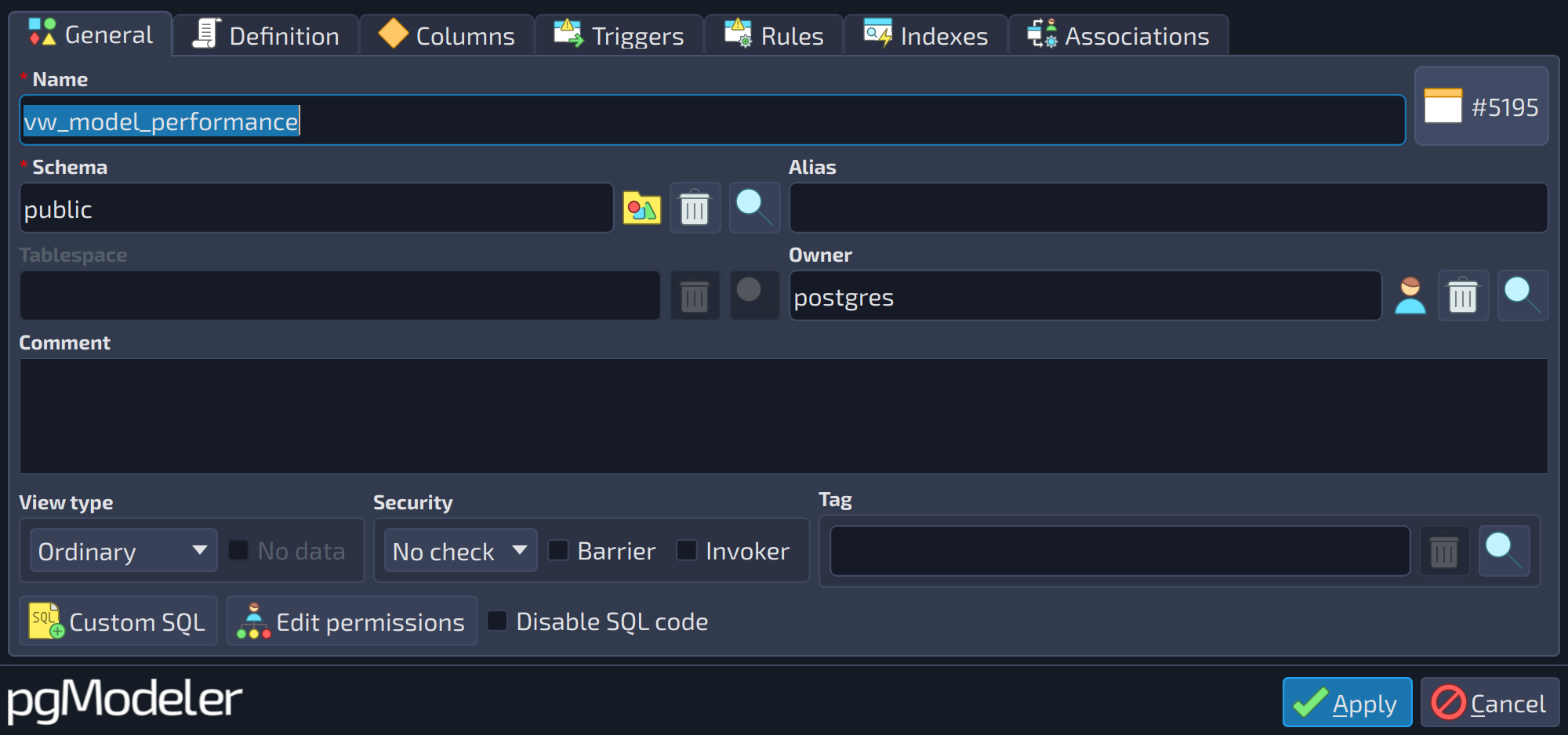 123456
| General | |||
|---|---|---|---|
| # | Field | Group box | Description |
| 1 | Mode | View type | Mode in which the view is constructed. |
| 2 | No data | View type | Indicates that the materialized view must not be populated at creation time ( |
| 3 | Check option | Security | Controls how |
| 4 | Barrier | Security | Should be used if the view is intended to provide row-level security. |
| 5 | Invoker | Security | Causes the underlying base relations to be checked against the privileges of the user of the view rather than the view owner. |
| 6 | Tag | This attribute is used to configure the tag object associated with the view. Tags are used to visually separate tables and views, even if they belong to the same schema. Details about tags can be seen further in this chapter in the section Tags. | |
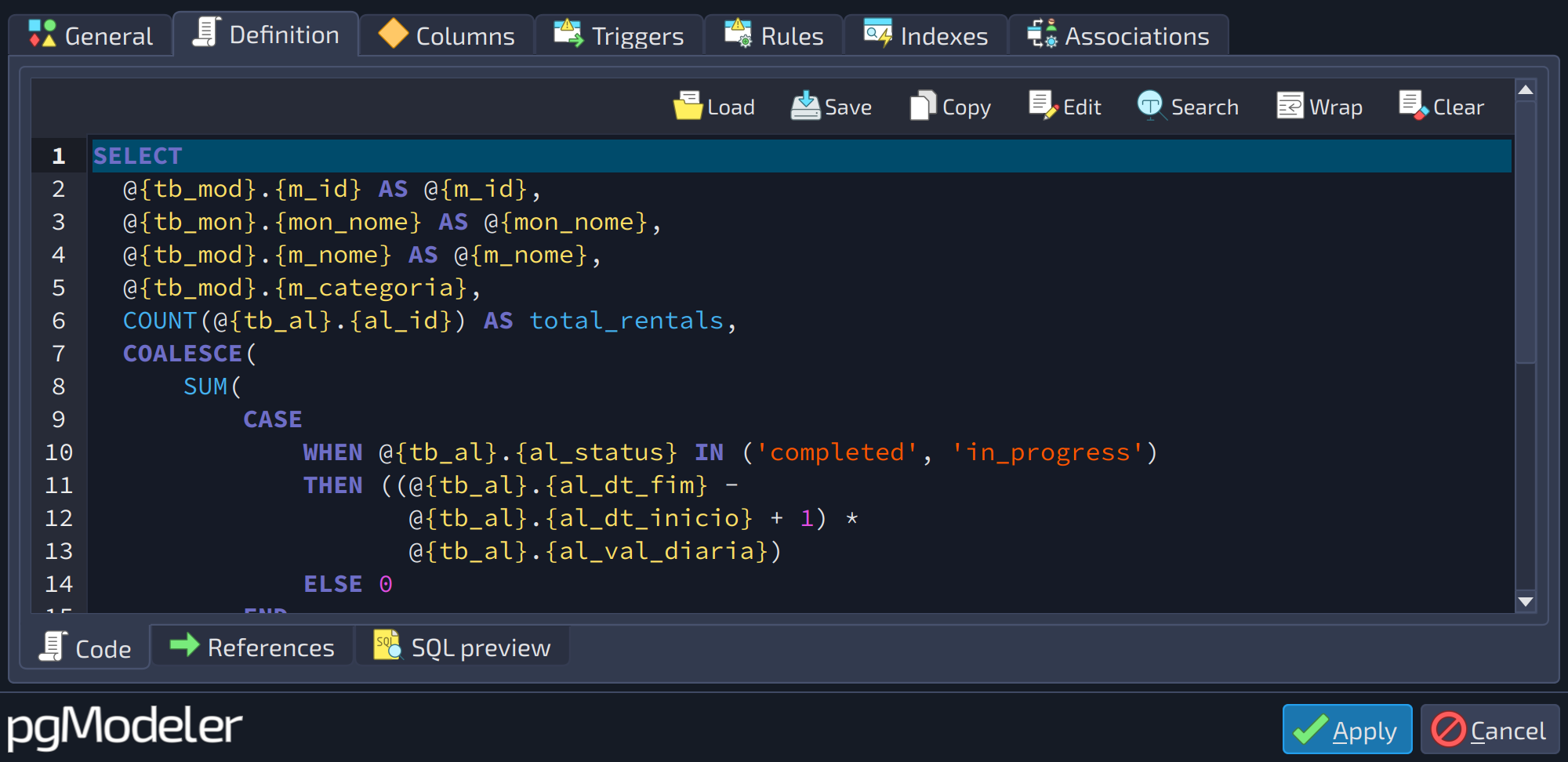 1
1
| Definition › Code | ||
|---|---|---|
| # | Field | Description |
| 1 | Code | The SQL command that defines the view. It can have references enclosed by |
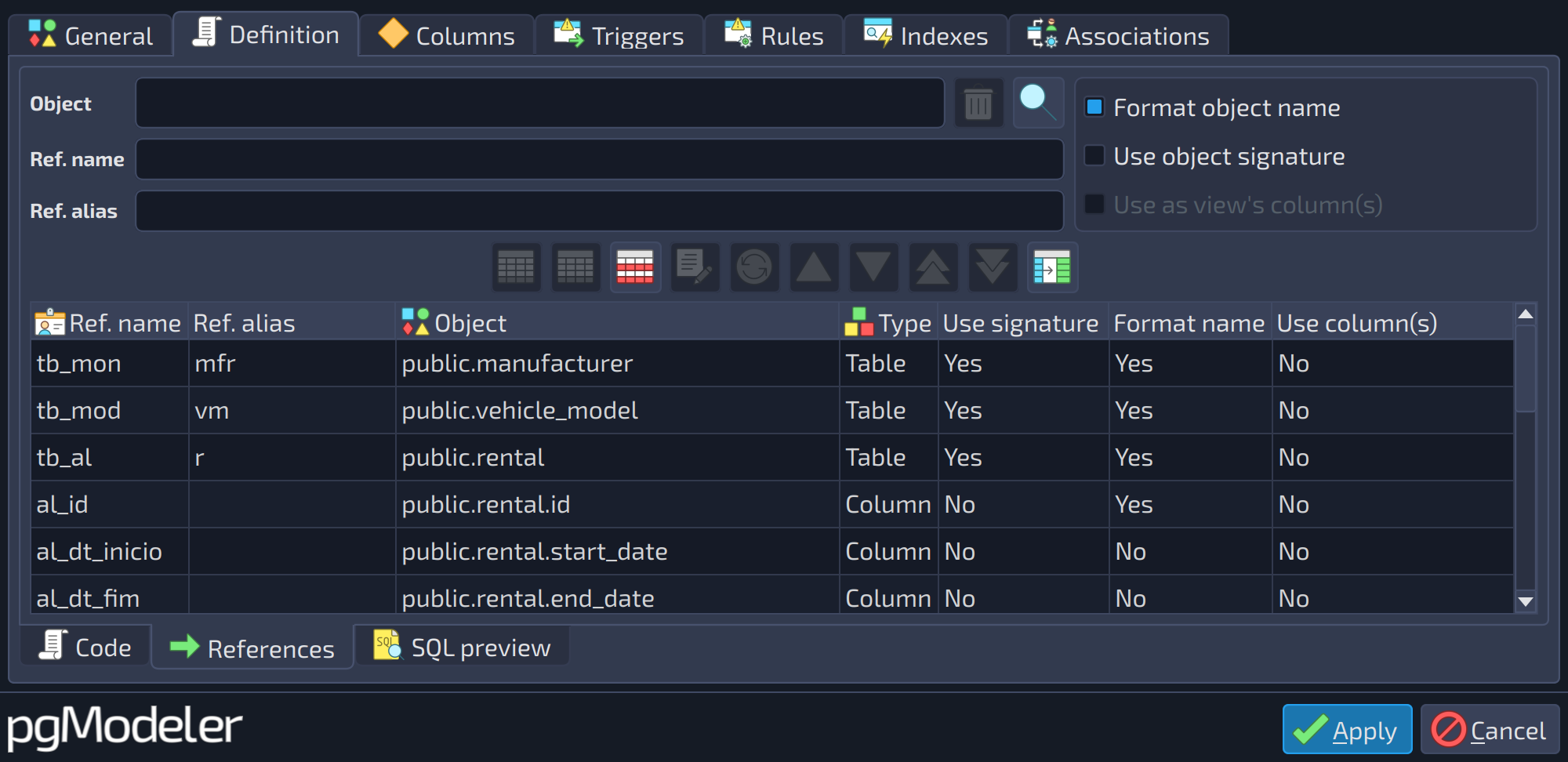 1234567
| Definition › References | ||
|---|---|---|
| # | Field | Description |
| 1 | Object | The object of the model (table, view, etc.) the reference points to. Use the buttons |
| 2 | Format object name | The referenced object's name, alias and signature will be automatically quoted when special characters are found. Additionally, for schema qualified objects, the name of the parent schema is prepended to the referenced object's name or signature. This will avoid common SQL syntax errors or loss of semantics. |
| 3 | Ref. name | The name of the reference to an object. All occurrences of the reference enclosed by {} are replaced by the referenced object's name or signature in the SQL code. |
| 4 | Use object signature | Use the referenced object's signature instead of its name. For some objects like functions, casts, operators and some others the signature will include parameters types and some other information. |
| 5 | Ref. alias | The alias of the reference to an object. All occurrences of the reference enclosed by @{} are replaced by the referenced object's alias in the SQL code. |
| 6 | Use as view's column(s) | Use the referenced object's columns as the view's columns. |
| 7 | References | The references used to construct the view's SQL definition. Each one has a name, an optional alias, the referenced object, and options. |

 beside the field to pick it.
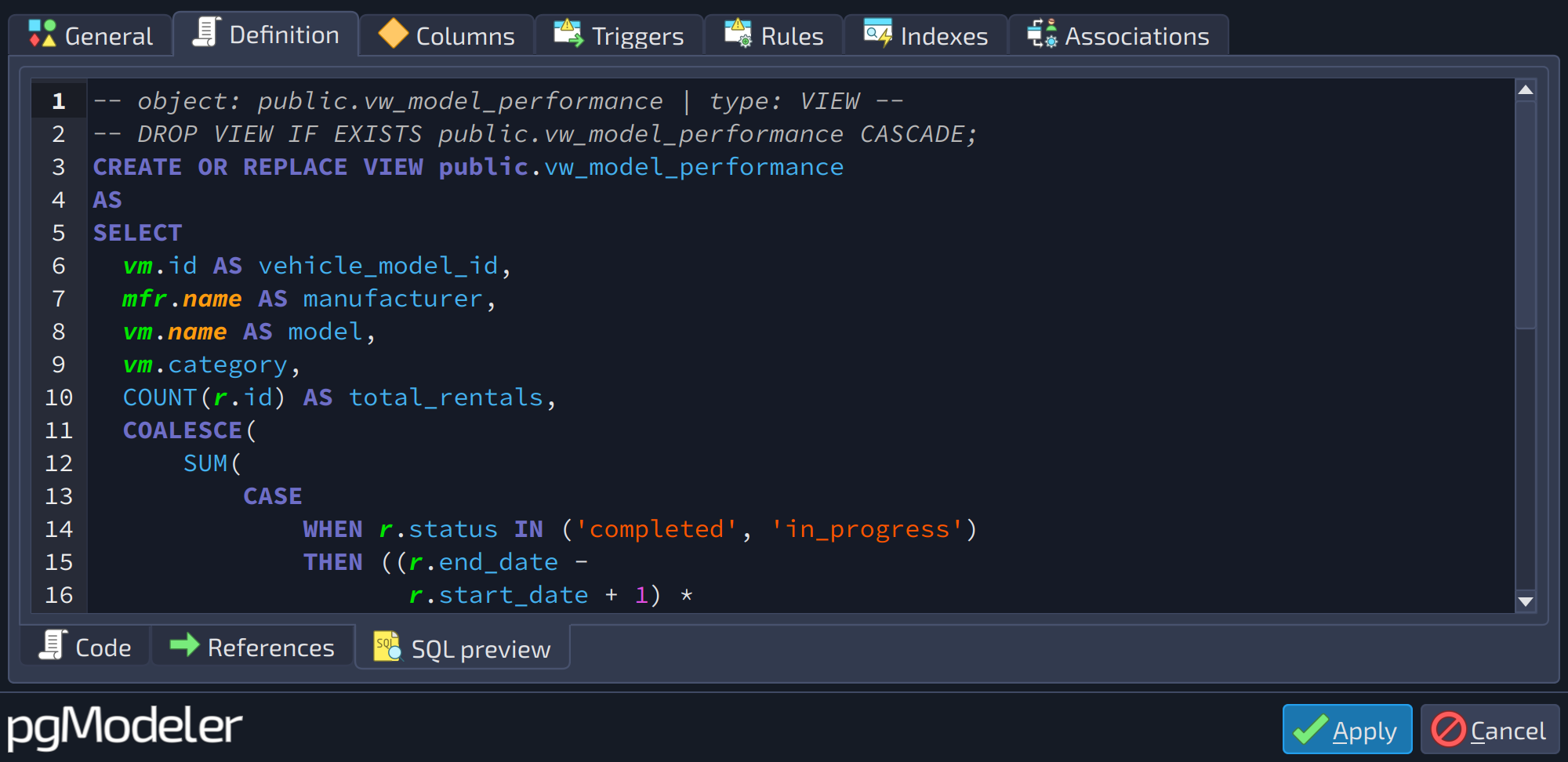 1
1
| Definition › SQL preview | ||
|---|---|---|
| # | Field | Description |
| 1 | SQL code | Read-only preview of the SQL code generated for the object with the values currently set in the form. |
 12345678
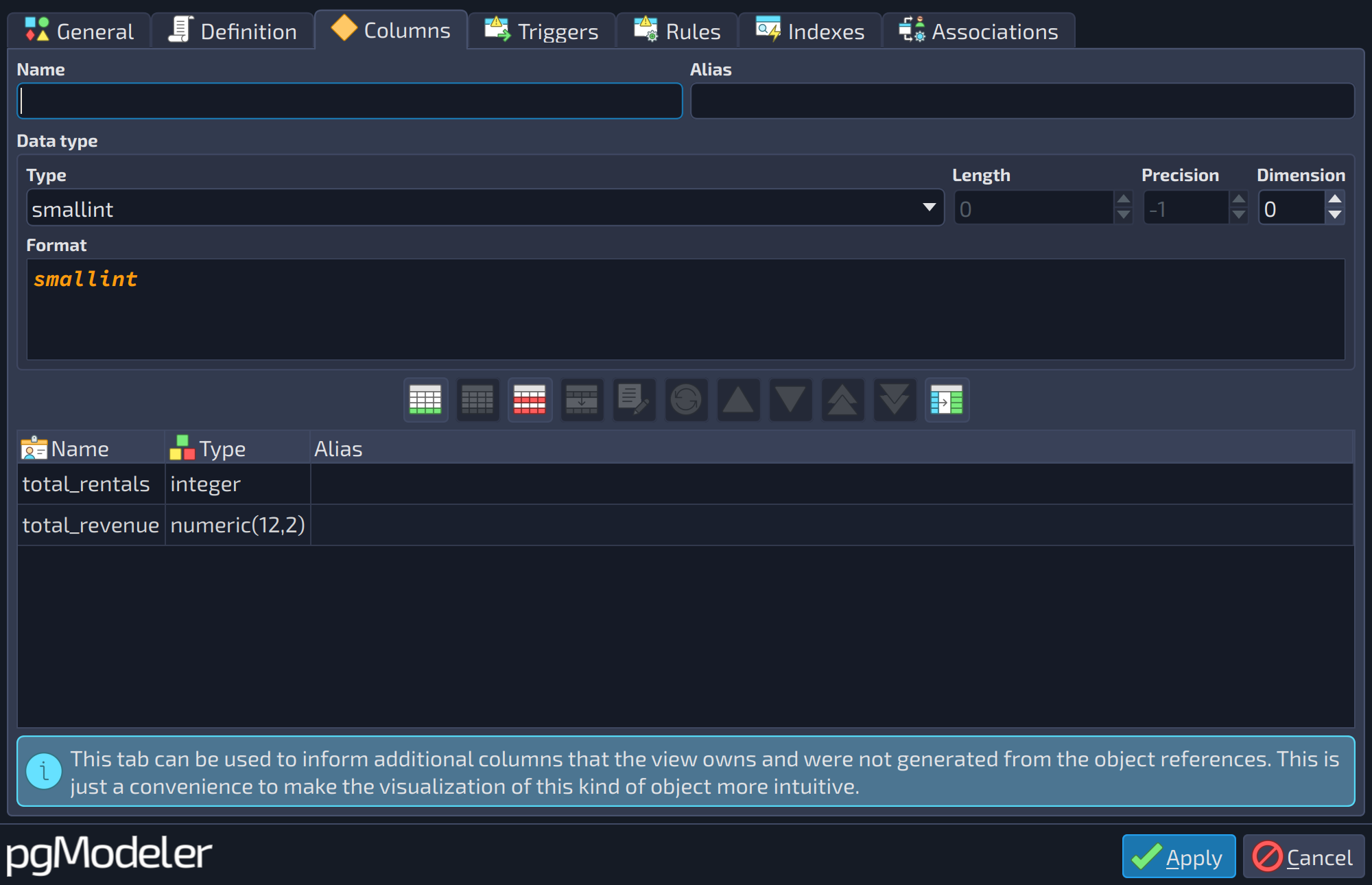
| Columns | |||
|---|---|---|---|
| # | Field | Group box | Description |
| 1 | Name | The name of the object. It follows the PostgreSQL rules for identifiers (up to 63 bytes in a default installation). Leaving it empty raises an error when the form is applied. | |
| 2 | Alias | A friendlier name for the object. When the model is displayed in the compact view (see the section about the compact view of the model), the alias is shown instead of the name. If the field is empty, the name is always shown. | |
| 3 | Type | Data type | The data type. Besides the built-in types, the list also holds the user-defined types, domains and other types of the model. |
| 4 | Length | Data type | Length, or number of characters or bits, for the types that accept one, like |
| 5 | Precision | Data type | Precision, for the types that accept it, like |
| 6 | Dimension | Data type | Number of dimensions when the type is an array ( |
| 7 | Format | Data type | Read-only preview of the data type as it is written in the SQL code, with length, precision, dimension and other modifiers applied. |
| 8 | Columns | The custom columns added to the view, which are listed along with the columns deduced from its references. | |
 1
1
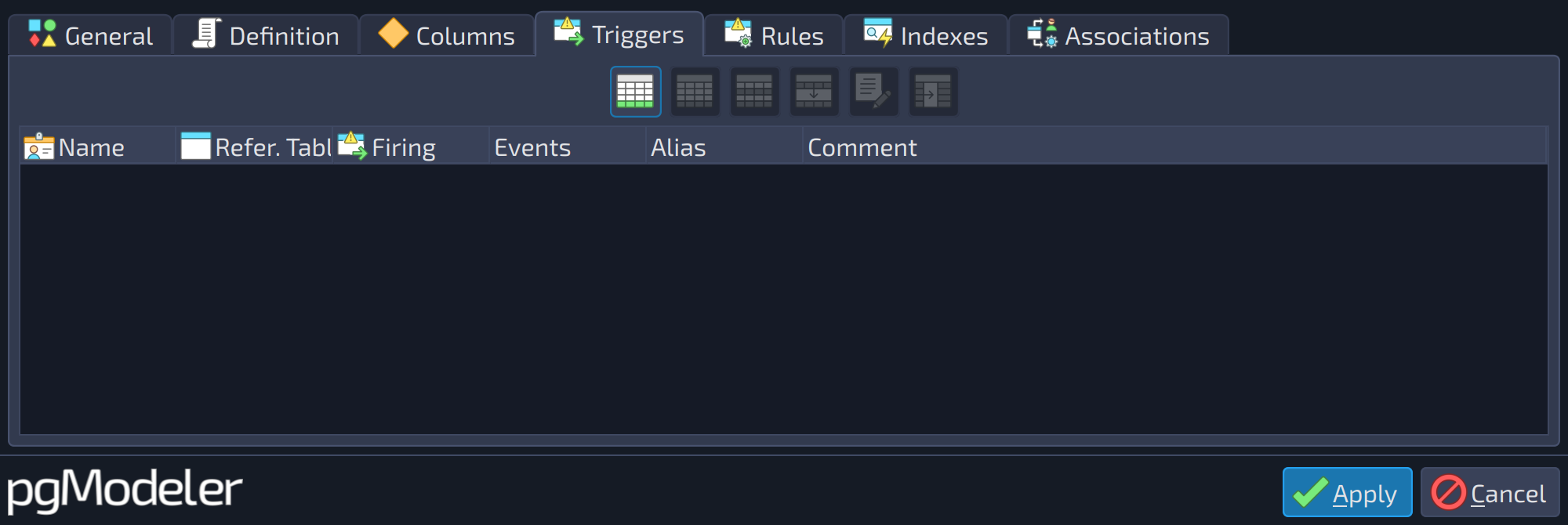
| Triggers | ||
|---|---|---|
| # | Field | Description |
| 1 | Triggers | The triggers of the object (name, referenced table, firing time, events, alias, and comment). Use the buttons beside the list ( |


 ) to handle them. Refer to the section Triggers for details.
 1
1
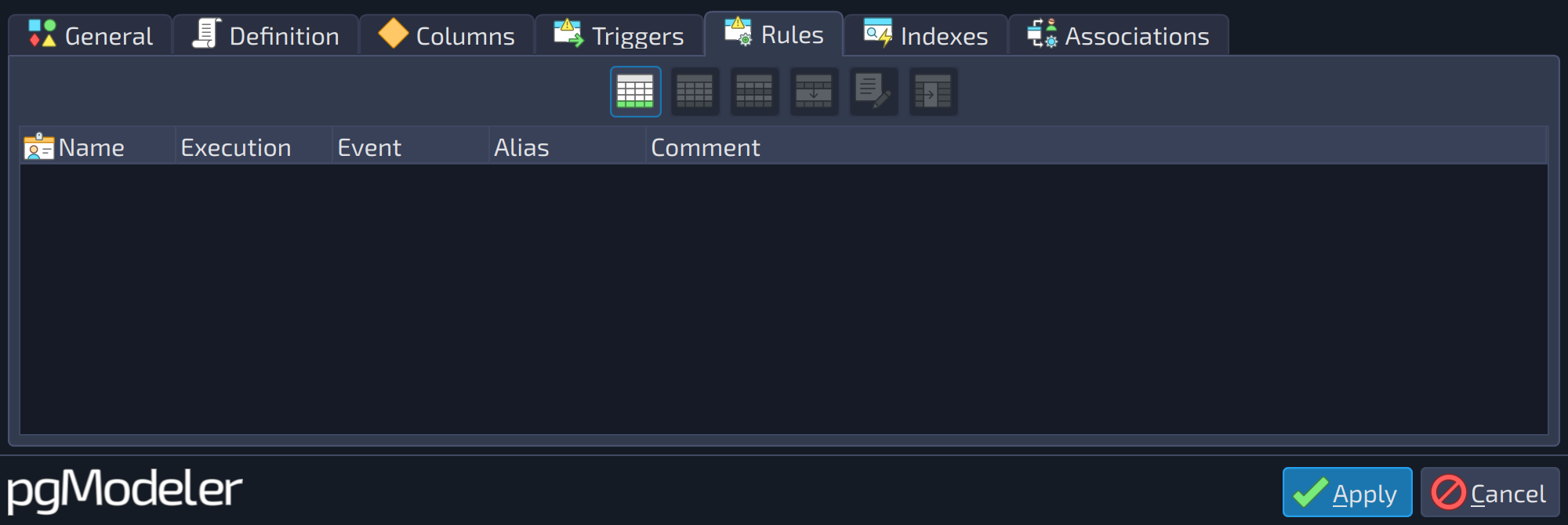
| Rules | ||
|---|---|---|
| # | Field | Description |
| 1 | Rules | The rules of the object (name, execution, event, alias, and comment). Use the buttons beside the list ( |
 1
1
| Indexes | ||
|---|---|---|
| # | Field | Description |
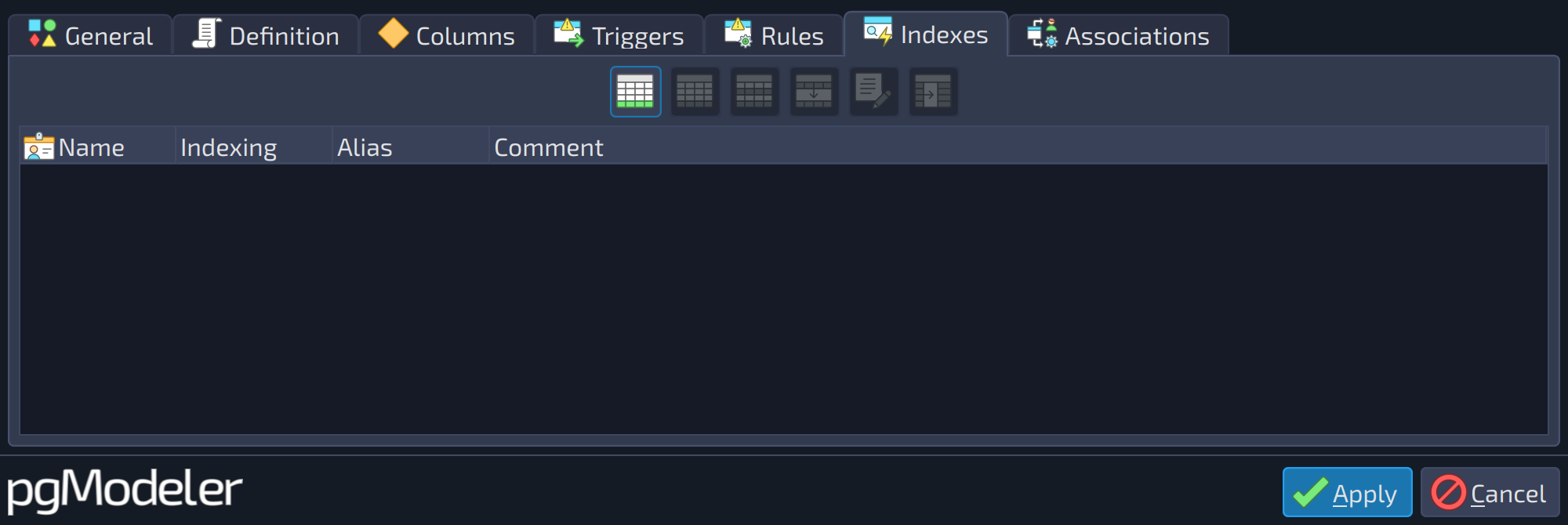
| 1 | Indexes | The indexes assigned to the view. They are valid only for materialized views. |
View references
To configure views, one can freely type SQL commands with special placeholder variables enclosed by {}, which are called references. Any reference in the typed SQL command that defines the view will be replaced by the referenced object's name, which can be columns, functions, procedures, tables, foreign tables, and views. Once the view is created, pgModeler will create relationships between it and the referenced tables (foreign tables and views).
The image below gives an idea of how the view structure works. The view's SQL definition has two references named {tb} and {va}, which respectively point to the table public.table_b and the view schema_b.view_b. Also, in the code below, there are two other forms of references, @{tb} and @{va}, which are replaced by the respective reference aliases (_tb and _va).
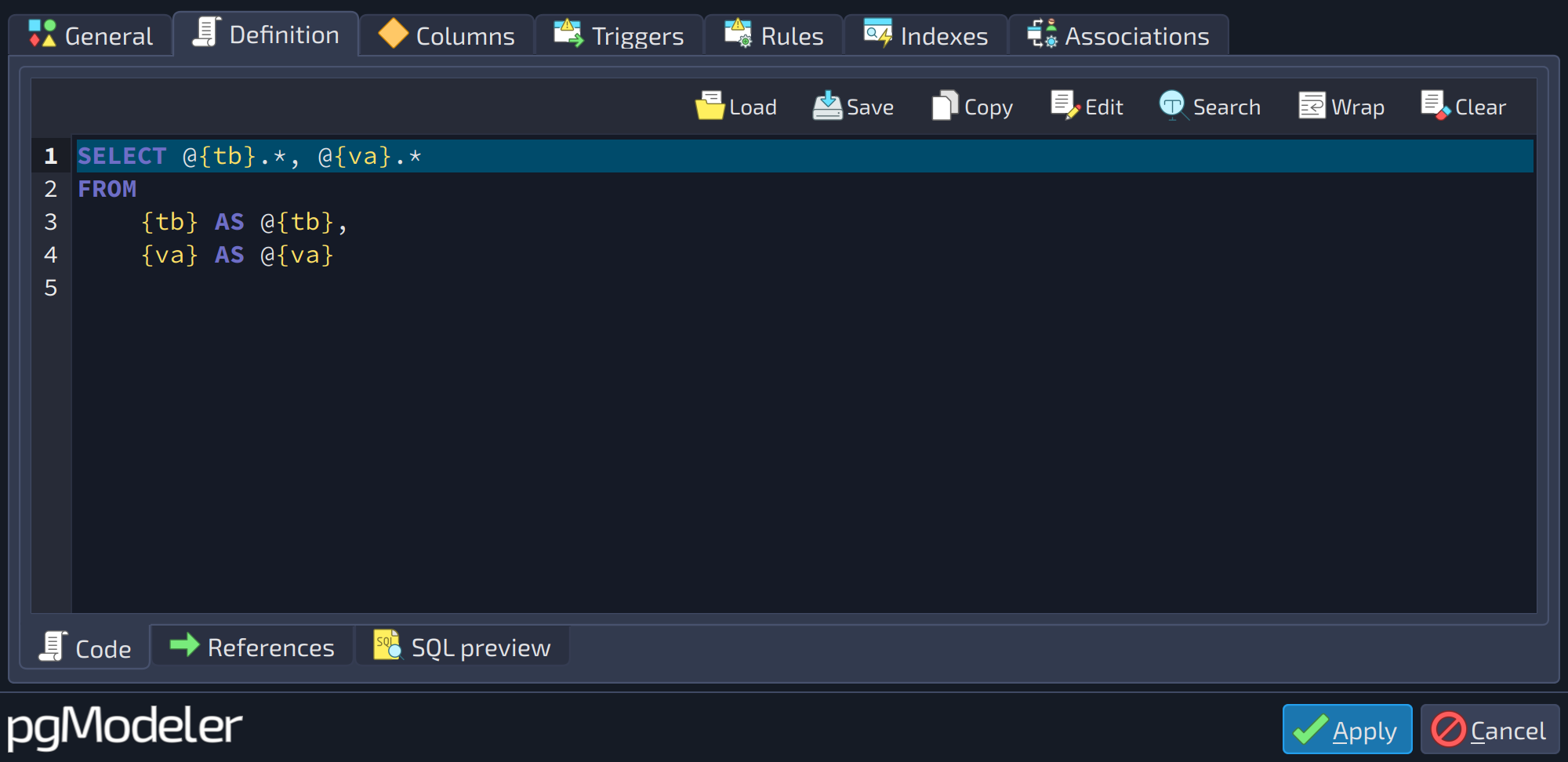
So once the view's SQL code is generated, the referenced object names as well as the reference aliases are used, resulting in the code below.
CREATE OR REPLACE VIEW schema_a.view_a
AS
SELECT _tb.*, _va.*
FROM
	public.table_b AS _tb,
	schema_b.view_b AS _va;
Views can deduce their columns from the referenced objects (relations and columns), but the user can also hint to pgModeler that a referenced object is a column provider. In that case, when configuring a reference in the References tab, make sure to check the option Use column(s). Based on that, when creating the graphical representation of the view in the model, pgModeler will get each flagged object's columns and create a copy of them in the view.
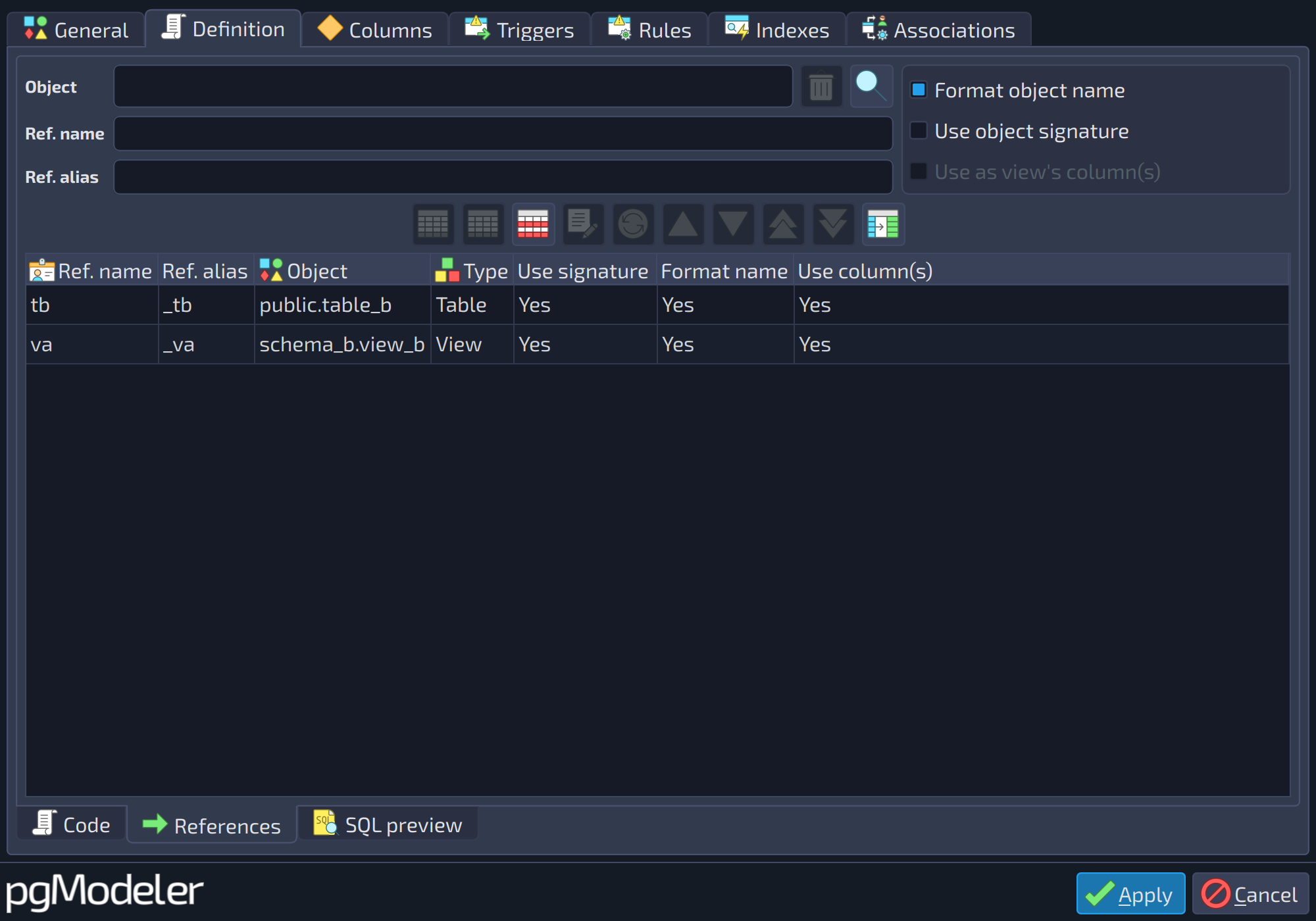
The image above shows a view referencing another view. To achieve a similar result, just create as many references to views as needed when designing a new view. The only downside of this feature is that you can't reference individual view columns like in tables or foreign tables, so if you check the Use column(s) option in a reference to a view, all columns of that object will be copied to the new view.
References
View DDL
https://www.postgresql.org/docs/current/static/sql-createview.html
Materialized view DDL
https://www.postgresql.org/docs/current/static/sql-creatematerializedview.html