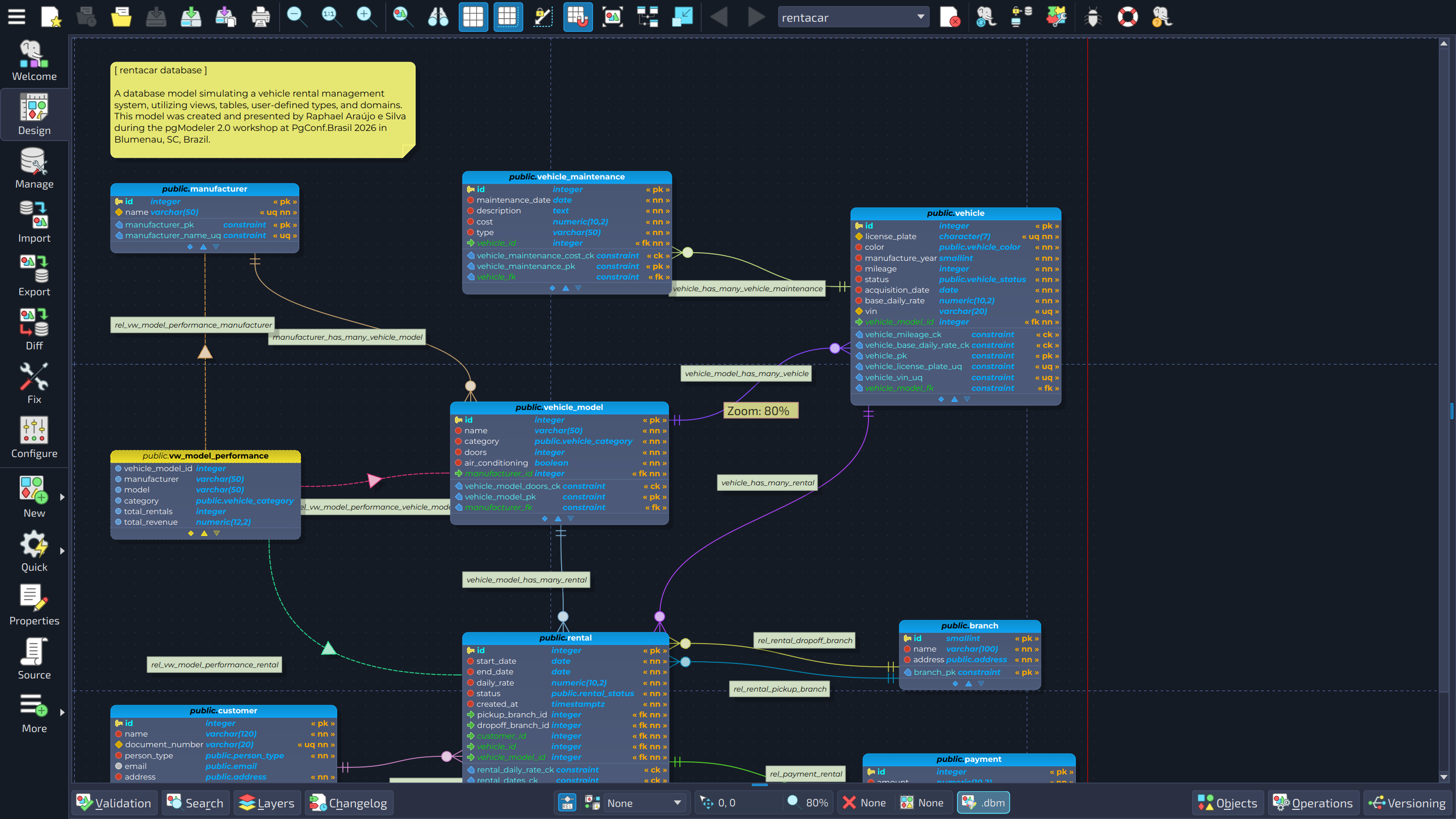
| 1 | Canvas area | This area is used to draw model objects like tables, views, textboxes, and relationships. The dashed lines are the page delimiters, which represent the paper limits (according to the paper size configured) and serve as a guide to prevent objects from being cut when printing the model. The canvas size is always updated whenever objects are moved. |
| 2 | Toggle buttons and canvas information | These buttons activate advanced widgets: Validation  , Search , Search  , Layers , Layers  and Changelog and Changelog  on the left, Objects on the left, Objects  and Operations and Operations  on the right, and the widgets added by plug-ins, like Versioning on the right, and the widgets added by plug-ins, like Versioning  . Between them there is a set of information about the current state of the canvas: the visibility of the relationships of the same scene, the segmentation mode, the mouse pointer position (in canvas coordinates), the current zoom factor, the current selection and the overall width/height of the selection. The indicator at the right of these items, added by the Split Model Format plug-in, shows how the model is stored (a single file or split files). . Between them there is a set of information about the current state of the canvas: the visibility of the relationships of the same scene, the segmentation mode, the mouse pointer position (in canvas coordinates), the current zoom factor, the current selection and the overall width/height of the selection. The indicator at the right of these items, added by the Split Model Format plug-in, shows how the model is stored (a single file or split files). |
| 3 | Control toolbar | Gathers the most used actions of the main menu so they can be reached without expanding menus. From left to right: the button that opens the main menu  , the model selector (which switches between the open models), the file actions (New , the model selector (which switches between the open models), the file actions (New  , Load , Load  , Save , Save  , Save as , Save as  , and Print , and Print  ), the zoom actions (Zoom out ), the zoom actions (Zoom out  , Normal zoom , Normal zoom  , and Zoom in , and Zoom in  ), the tools Magnifier ), the tools Magnifier  ( (F9) and Overview  ( (F10), the canvas options Show grid  ( (Ctrl+G), Show delimiters  ( (Ctrl+L), Lock delimiters  ( (Ctrl+K), and Align to grid  ( (Ctrl+H), and the Compact view  toggle. toggle. Lock delimiters keeps the size of the page delimiter lines when the zoom factor is below 100%, so more objects fit in a single page. At the right side of the toolbar there are the button Donate  , which shows a panel inviting users to support the project (it is also displayed automatically on the first run and after an upgrade), the button New version found! , which shows a panel inviting users to support the project (it is also displayed automatically on the first run and after an upgrade), the button New version found!  , which appears when the update notifier finds a newer version and opens a panel with its details, and the actions added by plug-ins. , which appears when the update notifier finds a newer version and opens a panel with its details, and the actions added by plug-ins. |
| 4 | Views bar | Switches between the views of the main window: Welcome  , Design , Design  and, in pgModeler Plus, Manage and, in pgModeler Plus, Manage  , Import , Import  and Diff and Diff  , plus the Export , plus the Export  , Fix , Fix  and Configure and Configure  forms. While a model is being designed, the bar also shows the New forms. While a model is being designed, the bar also shows the New  and Quick and Quick  buttons, which give access to the object creation menu and to the quick actions over the selected objects. buttons, which give access to the object creation menu and to the quick actions over the selected objects. |
 1234
1234