6.11.2. SQL execution panel
The SQL execution panel basically enables the user to run any SQL command in the server. There are additional features that permits to load and save SQL commands, perform text searches in the loaded command set, use code snippets, access a history of executed instructions and export the results of commands to a file in CSV format for later usage in third party softwares.
The below shows the widget's layout. In the top-left corner we have all available actions reunited, being them: Run, Script, Find, Clear All, Snippets, Export, Filter, Output. All their functions will be detailed shortly. Continuing to describe the widget, in the top-right corner a string denoting the currently managed database is displayed in the form database@server:port helping to avoid running commands on the wrong server. Finally, the portion at bottom is reserved for the commands results that may be a grid of data or a message, as well the command history panel. The actions of this widget are detailed as following:
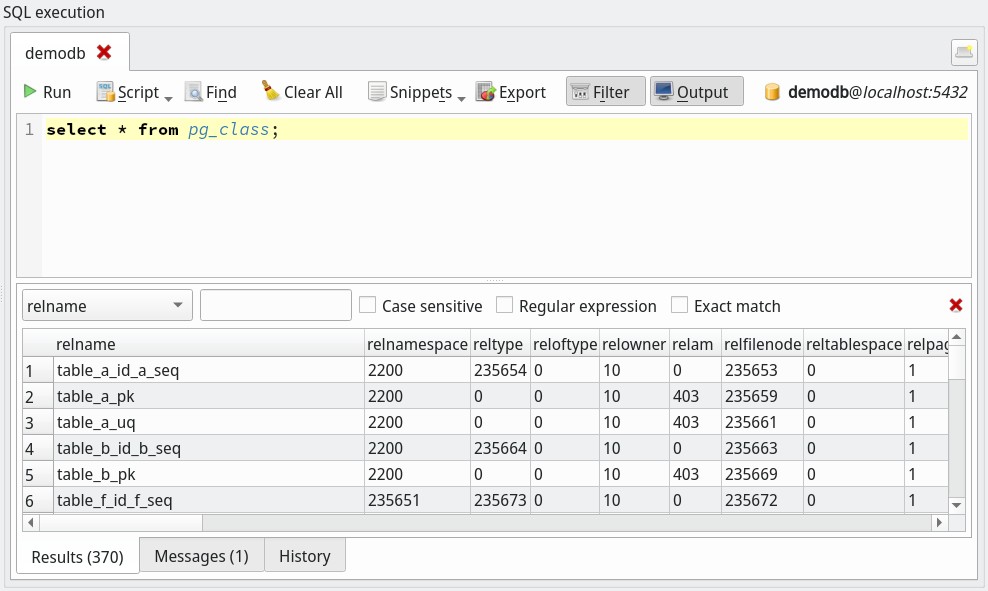
| Action | Description |
|---|---|
Add new execution tab | From the SQL execution there's a possibility to add extra execution tabs by hitting Ctrl + T or clicking  . . |
Run | Executes the current typed SQL commands against the current established connection. Use the shortcut key F5 to perform the execution. You can also select fragments of the typed commands and run them by using this same action. In newer versions of pgModeler you can abort the execution by hitting Esc anytime or clicking the action Stop. |
Script | This button reunites in a menu the actions to load and save external SQL scripts to be used in the SQL execution panel. |
Find | Toggles the text search form that will find occurrences of the desired terms in the typed commands. Additionally, it is possible to make replacements and adjust how words are searched by using regular expressions, case sensitiveness and exact matching. |
Clear All | Clears the results grid as well the typed commands. |
Snippets | This action gives access to all available snippets through a pop-up menu. By selecting a single item the code related to it will be appended to the current SQL commands. |
Export | Exports the current result set to CSV file in order to be handled in third party softwares. |
Filter | Toggles the results filtering where it's possible to perform extra filtering in the data retrieved from the executed SQL command. The first combo box is a list of the table's columns where the filtering should operate over. The second field is the filtering pattern itself, as the user types any text in the field the data filtering will happen automatically. The other fields are check boxes used to determine the filter matching: case sensitiveness, usage of regular expressions or exact matching. |
Output | Toggles the display of the results grid, error messages or history panel. This is useful when there is the need for more space in the screen to either type or read commands. Note that the output is automatically restored whenever a command is executed. |
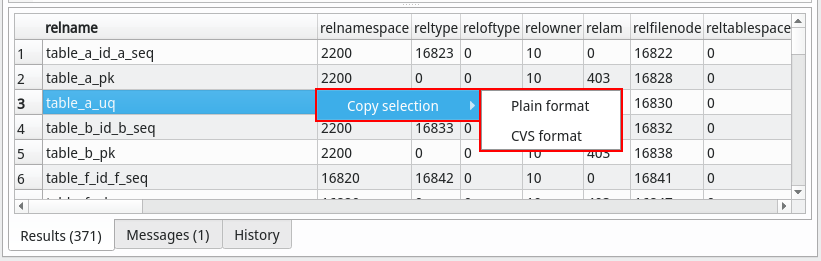
The results grid can be interacted in such way to copy the selection in two distinct formats by right clicking items: plain text format where values are separated by tabulation and CSV format where values are separated by semicolon (see below). Once activated, both actions copy the selection to clipboard in order to be used in external text editors.
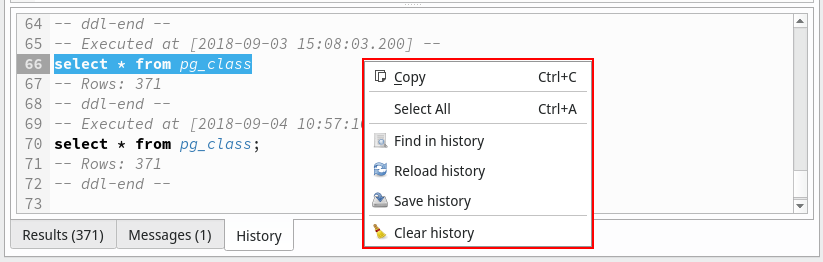
In the same way the history panel have a context menu that enables the user to interact with its contents. The available operations that can be done via context menu are: find in history, reload it, save to external file and clear the entire registry. Also, another way to interact with the history is by selecting fragments on it and then pressing the middle button of the mouse to quickly copy and paste the selection in the SQL execution panel.